

If your cable drawer looks like a tiny electronics museum, you’re not alone. Between phones, laptops, power banks, earbuds, monitors, dash cams, kids’ tablets and travel adapters, the humble USB port has quietly become the backbone of everyday tech. But when it comes to USB-A vs USB-C, the difference is more than “old rectangle versus new oval.”
Here’s the quick Zyron Tech answer: USB-A is the classic rectangular connector you’ve probably used for years. USB-C is the newer, reversible connector designed for slimmer devices, faster data, stronger charging and broader future compatibility. USB-C itself does not automatically guarantee maximum speed or maximum power, but it gives modern devices the connector platform to support those features. USB-IF describes USB Type-C as reversible, suitable for mobile devices through to laptops, and designed for scalable power and performance. (usb.org)
USB A vs USB C: the short answer
Think of USB-A as the reliable old power point in the shed: sturdy, familiar and still useful. Think of USB-C as the modern smart socket: smaller, reversible and capable of doing a lot more when paired with the right charger, cable and device.
In practical terms:
● USB-A is best for older accessories, basic charging, keyboards, mice, flash drives, printers, car ports and legacy devices.
● USB-C is best for modern phones, tablets, laptops, portable monitors, fast chargers, power banks, hubs and future-ready setups.
● USB-A usually has one “right way up.” We’ve all done the classic triple-flip dance.
● USB-C is reversible, so you can plug it in either way.
● USB-A is a connector shape, not a speed guarantee.
● USB-C is also a connector shape, not a speed guarantee. This is the big trap: a USB-C cable can be basic, high-speed, high-power or somewhere in between.
That last point matters. USB standards such as USB 3.2 and USB4 describe performance capabilities, while connector types such as USB-A and USB-C describe the physical plug and port. USB-IF guidance explicitly separates USB 3.2 performance naming from physical connector types such as USB Type-C and USB Standard-A. (usb.org)
What is USB-A?
USB-A, often called USB Type-A, is the traditional flat rectangular USB connector found on countless chargers, desktop computers, TVs, game consoles, car stereos, power boards, keyboards, mice and older laptops.
It became popular because it was simple, durable and widely adopted. For many Aussie households, USB-A is still everywhere: in the family car, the home office, the bedside charger, the hotel room TV and that “just in case” cable bag before a weekend away.
USB-A strengths
● Massive compatibility: Great for older devices and accessories.
● Easy to recognise: The rectangular shape is familiar to almost everyone.
● Still useful for peripherals: Keyboards, mice, webcams and older flash drives often work perfectly through USB-A.
● Good for basic charging: Many chargers, wall plates and power banks still include USB-A outputs.
USB-A drawbacks
● Not reversible: You need the correct orientation.
● Bulkier design: It takes up more space than USB-C, especially on thin laptops and compact chargers.
● Less future-focused: Newer devices increasingly use USB-C as their primary connector.
● Charging and data limits vary widely: A USB-A port might be basic USB 2.0, faster USB 3.x, or charger-only, depending on the product.
USB-IF’s own explanation for USB Type-C notes that older Standard-A and Standard-B connectors created size and internal volume constraints as devices became thinner and lighter. That’s one of the reasons USB-C exists. (usb.org)
What is USB-C?
USB-C, officially USB Type-C, is the small oval connector now common on modern phones, tablets, laptops, chargers, power banks, docks, monitors and accessories. Its headline feature is beautifully simple: it plugs in either way. No squinting. No torch. No “why won’t this go in?” moment at 11:47 pm.
But USB-C is not just about convenience. It was created as a modern connector ecosystem that can support different levels of power, performance and functionality. USB-IF lists key USB Type-C messages including a slim connector design, reversible plug orientation and cable direction, plus scalable power and performance. (usb.org)
USB-C strengths
● Reversible plug: Insert it either way.
● Compact shape: Ideal for slim laptops, phones, tablets and travel chargers.
● Modern charging support: USB-C is the connector used for USB Power Delivery, including higher wattage charging when the charger, cable and device all support it.
● Potential for faster data: USB-C can support high-speed standards including USB 3.2 and USB4, depending on the specific product.
● One-cable convenience: In the right setup, USB-C can handle charging, data and display from a single port.
USB-C drawbacks
● Not all USB-C cables are equal: Some are charging-focused, some are data-focused, and some support higher power or higher speeds.
● Labels matter: You need to check wattage and data-rate claims rather than assuming every USB-C cable is top-tier.
● Adapter clutter during the transition: If you still use USB-A accessories, you may need hubs or adapters.
USB-C vs USB-A: key differences that actually matter

-
Connector shape and ease of use
USB-A is rectangular and orientation-specific. USB-C is smaller, oval and reversible. That may sound minor until you’re plugging in a charger in the dark, behind a desk, in the car, or while your laptop battery is at 2 percent and your meeting starts in four minutes.
For everyday use, USB-C wins on convenience. It’s simply harder to get wrong.
-
Device design and portability
USB-A ports are physically larger. That was fine for chunky desktop towers and older laptops, but it’s less ideal for slim ultrabooks, tablets and compact GaN-style chargers.
USB-C’s smaller profile lets manufacturers build thinner devices and more compact charging accessories. USB-IF specifically positions USB Type-C as slim enough for mobile products while robust enough for laptops and tablets. (usb.org)
-
Charging power
Here’s where things get spicy. USB-A can charge plenty of devices, but USB-C is the modern home of serious charging power.
USB Power Delivery, or USB PD, enables more flexible power delivery over USB. USB-IF states that USB PD Revision 3.1 enabled delivery up to 240W over a full-featured USB Type-C cable and connector, expanding beyond the earlier 100W limit. (usb.org)
In real life, that means USB-C can be used across a much wider range of devices, from earbuds and phones to tablets, laptops and some higher-powered gear. The catch is that the full chain must support the required wattage: the charger, the cable and the device.
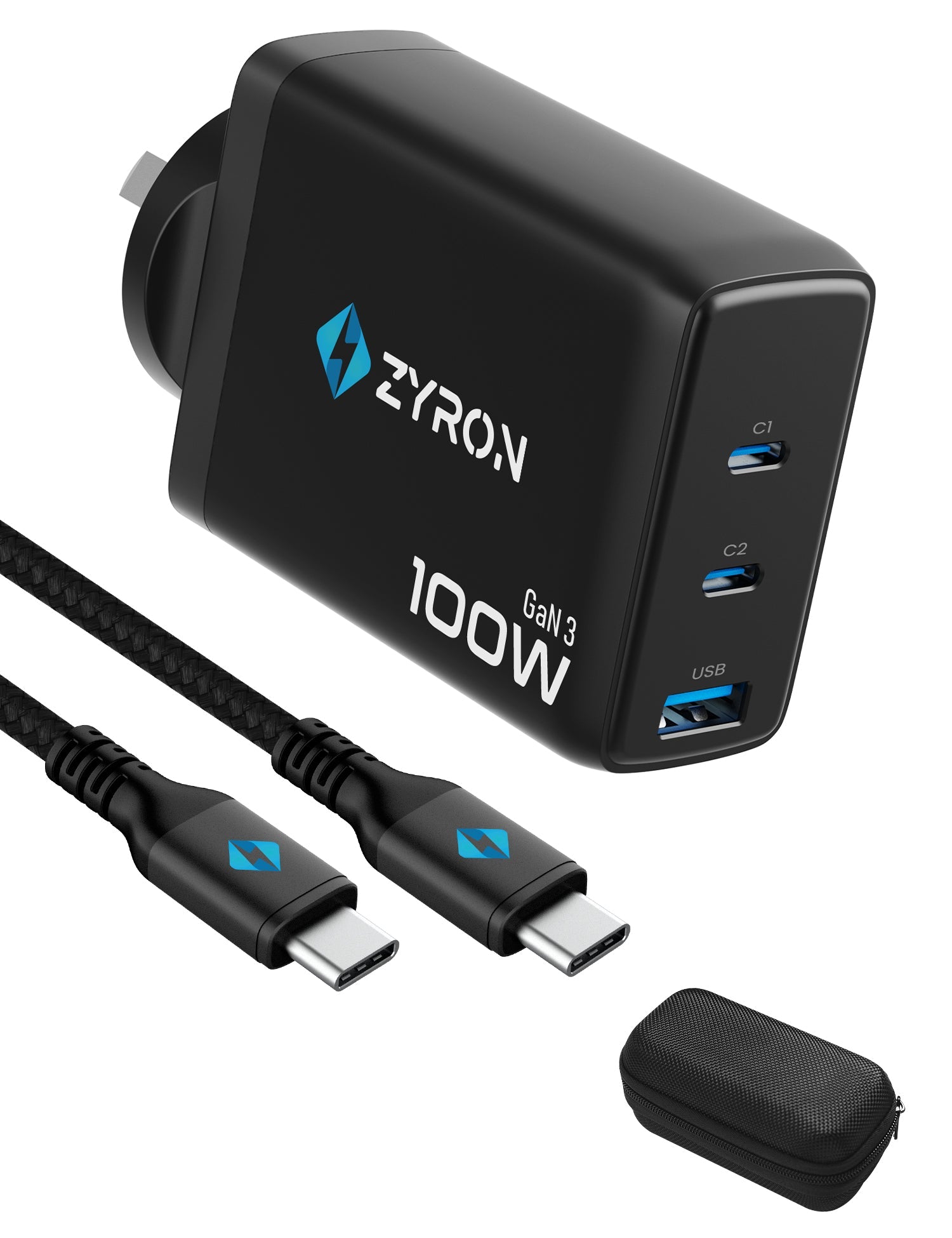
For Australians building a travel or home office setup, that matters. Instead of carrying one charger for your phone, another for your tablet and a bulky brick for your laptop, a well-chosen USB-C charger can help simplify the kit. Just make sure the wattage suits your device.
-
Data transfer speed
This is the part where marketing can get messier than a box of tangled cables. A USB-C port can be slow or very fast. A USB-A port can also be slow or fast. The connector alone does not tell the full speed story.
USB-IF consumer-facing performance labels include names such as USB 5Gbps, USB 10Gbps, USB 20Gbps, USB 40Gbps and USB 80Gbps, plus Hi-Speed USB. For USB-C to USB-C cables, USB-IF guidance also combines data-rate labels with power labels such as 60W or 240W. (usb.org)
So if you’re buying a cable for moving 4K video files, backing up a portable SSD, or connecting a dock, don’t just look for “USB-C.” Look for the rated data speed.
-
Display and docking support
USB-C can support more than charging and data when the device and cable allow it. USB4, for example, is designed to share a high-speed link across data and display protocols, and USB-IF notes that USB4 extends USB Type-C performance while supporting multiple simultaneous data and display protocols. (usb.org)
That’s why many modern laptop setups use a single USB-C connection to run a monitor, keyboard, mouse, Ethernet adapter and power input through a dock or hub.
Important Guru warning: not every USB-C port supports video output. If you want to connect a laptop to a monitor over USB-C, check your device specs before buying a cable or hub.
USB-A vs USB-C speed: why the label beats the shape
If you remember one thing from this guide, make it this: USB-C is a connector, not a promise. A cheap USB-C cable might only be suitable for basic charging and slower data. A better USB-C cable may support high-speed file transfer and higher wattage charging. A premium cable may support USB4-class performance and higher power, depending on certification and product design.
USB4 cables can support up to 80Gbps over 80Gbps certified cables, and it maintains backwards compatibility with previous USB versions, according to USB-IF. (usb.org)
When comparing usb c vs usb a for speed, use this buying checklist:
● For phone charging: Check wattage first.
● For laptop charging: Check both wattage and whether the cable supports the needed power level.
● For external SSDs: Check the data rate, not just the connector.
● For monitors and docks: Check that the device port supports display output and that the cable is suitable.
● For basic accessories: USB-A may still be perfectly fine.
USB-C cables: the sneaky detail most people miss
USB-C cable quality matters because the cable is not just a passive piece of string with metal ends. In many modern setups, the cable helps determine how much power and data your devices can safely and reliably handle.
USB-IF’s cable guidance says USB-C to USB-C cables in its compliance program must be labelled with either 60W or 240W power capability, and most USB-C to USB-C cables beyond basic High-Speed USB also require data-rate markings. (usb.org)
That does not mean every cable sitting on a random marketplace page is clearly labelled or equally capable. It means you should shop by specs, not vibes.
A practical cable-buying rule:
● Choose a 60W USB-C cable for many phone, tablet and light laptop setups.
● Choose a higher-wattage USB-C cable if your laptop or charger requires it.
● Choose a data-rated USB-C cable if you transfer large files or use docks.
● Keep a USB-A to USB-C cable around for older chargers, cars and ports.
● Avoid mystery cables with no wattage, no data rating and no trustworthy brand information.
Compatibility: do USB-A and USB-C work together?
Yes, often. You can use USB-A to USB-C cables and adapters to connect older USB-A chargers or ports to newer USB-C devices. This is handy for cars, office PCs, older wall chargers and power banks.
But compatibility does not always mean maximum performance. A USB-A to USB-C cable may charge a phone or connect an accessory, but it generally won’t unlock the full potential of modern USB-C Power Delivery setups. For higher laptop charging speeds, USB-C to USB-C is usually the better path because USB PD’s high-power capabilities are built around USB Type-C cable and connector support. (usb.org)
Keep USB-A if you use:
● Older desktop PCs or laptops
● Keyboards and mice with USB-A receivers
● Printers and scanners
● Car USB ports
● Older power banks
● Flash drives
● TVs, consoles and set-top boxes
Move to USB-C if you use:
● A modern phone, tablet or laptop
● A USB-C power bank
● A multi-port fast charger
● A portable monitor
● A laptop dock or hub
● External SSD storage
● A minimalist travel charging kit
Which one should you choose?
For most people, the answer is not “throw away every USB-A cable today.” The smarter move is a staged upgrade.
Choose USB-A when:
USB-A still makes sense for low-power accessories and older ports. If your keyboard receiver, printer cable or car charging port works fine, there’s no need to turn your tech life upside down. USB-A remains useful as a bridge between old and new gear.
Choose USB-C when:
USB-C is the better choice for new chargers, new cables, new power banks, new laptops, modern phones and travel setups. If you are buying something new in 2026, USB-C is usually the more future-ready option because it can support modern power delivery, faster data rates and more flexible device designs.
Best setup for most Australian households
A balanced kit looks like this:
● One compact USB-C wall charger for daily charging.
● One USB-C to USB-C cable for your main phone, tablet or laptop.
● One higher-power USB-C cable if your laptop requires it.
● One USB-A to USB-C cable for cars, older chargers and backup use.
● One USB-C hub if your laptop has limited ports.
● One clearly labelled power bank for commuting, uni, work or travel.
That setup keeps you ready for modern devices without making your older accessories useless overnight.

Common mistakes when comparing USB-A vs USB-C
Mistake 1: assuming every USB-C cable is fast
Some USB-C cables are built mainly for charging. Others are built for high-speed data. Check the speed rating if file transfer matters.
Mistake 2: assuming every USB-C cable can charge a laptop
Laptop charging depends on wattage. A cable that works fine for earbuds may not be suitable for a power-hungry laptop.
Mistake 3: ignoring the charger
A great cable won’t magically make a low-power charger fast. The charger, cable and device all need to support the target performance.
Mistake 4: buying based on connector alone
“USB-C” tells you the shape. It does not tell you the full charging wattage, data speed, display support or build quality.
Mistake 5: ditching USB-A too early
USB-C is the future-facing choice, but USB-A is still handy. Keep a couple of quality USB-A cables for legacy devices.
Final verdict: USB-A vs USB-C
In the usb-a vs usb-c matchup, USB-C is the clear winner for new tech. It’s smaller, reversible, more flexible and better suited to modern charging, data and docking needs. USB-A still has a place, especially for older accessories and ports, but it’s no longer the connector you’d choose when building a clean, future-ready setup.
The real Zyron Tech takeaway: don’t just switch to USB-C; switch to the right USB-C gear. Look for the wattage your device needs, the data speed your workflow requires and the compatibility your setup demands.
If your cable drawer is ready for a glow-up, start with the essentials: a reliable USB-C charger, a quality USB-C to USB-C cable, and a backup USB-A to USB-C cable for older ports. That gives you the best of both worlds without the spaghetti situation.
FAQ
Is USB-C faster than USB-A?
USB-C can be faster, but it is not automatically faster. Speed depends on the USB standard supported by the device, port and cable. Look for data-rate labels such as USB 5Gbps, USB 10Gbps, USB 20Gbps, USB 40Gbps or USB 80Gbps rather than relying on connector shape alone. (usb.org)
Can I plug USB-C into USB-A?
Not directly, because the connector shapes are different. You need a USB-A to USB-C cable or an adapter. This is common for older chargers, cars and computer ports.
Is USB-C better for fast charging?
Yes, USB-C is generally the better connector for modern fast charging, especially when used with USB Power Delivery. USB PD Revision 3.1 supports up to 240W over suitable USB Type-C cables and connectors, though your actual charging speed depends on the charger, cable and device. (usb.org)
Should I replace all my USB-A cables?
Not necessarily. Keep USB-A cables for older gear, cars and basic accessories. For new chargers, laptops, power banks and travel setups, prioritise USB-C.
What is the biggest difference in USB A vs USB C for everyday users?
The biggest everyday difference is convenience and capability. USB-C is reversible, compact and better suited to modern charging and high-performance accessories. USB-A is still useful, but it is mainly a legacy connector now.
What should I buy first when upgrading?
Start with a quality USB-C wall charger and a USB-C to USB-C cable rated for your main device. If you still use older chargers or car ports, add a USB-A to USB-C cable as your backup bridge.




Leave a comment
All comments are moderated before being published.
This site is protected by hCaptcha and the hCaptcha Privacy Policy and Terms of Service apply.